In the last posts, we saw how to build simple LOVs and Cascading LOVs declaratively, without writing any code. In this post we will see how to build Search form using ADF BC.

Just breeze through the wizard by pressing Next until 2 projects Model and ViewController are created as below:

Now right click on Model project and invoke the "Create Business components from Tables" wizard. Chose the HR connection and select the Employees table.
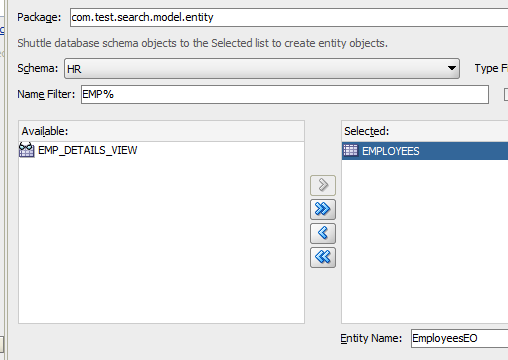
Create EmployeesVO in the Entity-based View object

No need to select the Read only VO. Chose the default setting on Application Module. Keep clicking next and Finish. Finally the Model should look like below:

Now create a jsf page. Right Click on ViewController -> New -> "Page" as shown below:

In the next screen give FileName as SearchEmoployee.jsf (Even if you chose .jspx in 11g it should not give any issues).

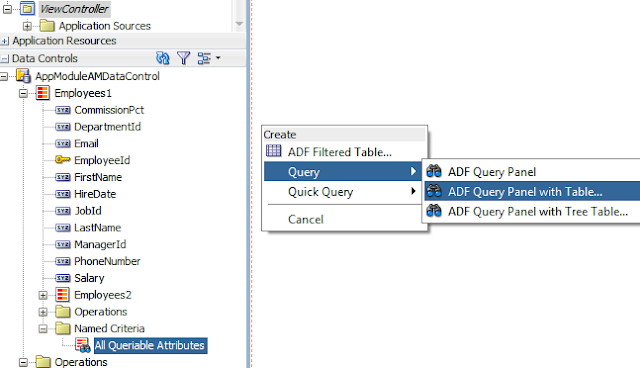
Now goto the Data Control and Drag and Drop the "All Queriable Attributes" onto the page. From the resultant popup chose Query -> ADF Query Panel with Table.


Please note this application is Done on 12c. 12.1.2 version. The steps should be similar on 11g as well.
Search forms are one of the most common requirement that we come across. ADF BC implement it using View Criterias on a VO.
The advantage of such an approach is that you can have many search criterias on the same VO, e.g., one can search by All the searchable fields of an Employees VO, or By Manager's Name or Employee's Name or by Hire Date etc....

Just breeze through the wizard by pressing Next until 2 projects Model and ViewController are created as below:

Now right click on Model project and invoke the "Create Business components from Tables" wizard. Chose the HR connection and select the Employees table.

Create EmployeesVO in the Entity-based View object

No need to select the Read only VO. Chose the default setting on Application Module. Keep clicking next and Finish. Finally the Model should look like below:

Now create a jsf page. Right Click on ViewController -> New -> "Page" as shown below:

In the next screen give FileName as SearchEmoployee.jsf (Even if you chose .jspx in 11g it should not give any issues).

Now goto the Data Control and Drag and Drop the "All Queriable Attributes" onto the page. From the resultant popup chose Query -> ADF Query Panel with Table.
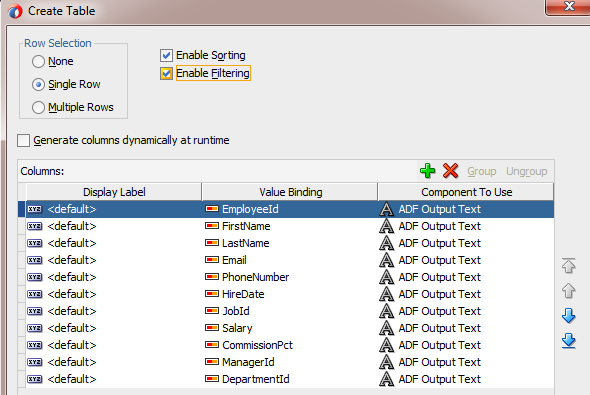
This will bring "Create Table" screen where you can select what all columns to be displayed onto the Table. You can also chose if you should only allow "Single Row" or "Multiple Rows", Filter and sorting option.
Just run the page. It should show like below:

Try following things to get a hang of the Search Form and table.
a) Press on Search and it should give all the rows.
b) Give values on the filters and press ENTER to filter the values.
c) Hover over the column and you will see Sorting icons.
d) Press on "Any" and give multiple search fields to see that it acts like an "OR" condition.

e) Click on Advanced button and see how many options appearing like Contains, Is Blank etc.. You can also see Add fields to achieve OR condition on 1 column. Eg., find employees with Id 100 or 101 or 102...

This was absolute Basic of the Search capabilities of af:Query component. Its likely that you are almost never going to use this in its default form.
We can a lot of things with af:query like:
a) Execute Search by default.
b) Creating Other Query Criterias like Search By First Name and Last Name etc...
c) Making use of "Selectively Required" which means one of the fields must be given.
d) Making Search field Mandatory.
e) Removing Search fields while running.
f) Arranging fields in the Query Region.
and a lot more...


